
Build a day schedule
Turn travel and stop times into an itinerary you can print, export, or save on this device.
Build your schedule
- Open the Day schedule in the Trip toolkit.
- Set the departure time and schedule name.
- For each stop, enter its name, Travel here (min), and Time here (min).
- Use + Add a stop to add more, or the × button to remove a stop. You can include up to 25 stops.
- Select Build schedule to see arrival and departure times.
Travel time for the first stop starts at your departure time. The next leg begins after the previous stop’s stay. Enter whole minutes from 0 to 1,440 for each travel and stay field.
Read the timetable
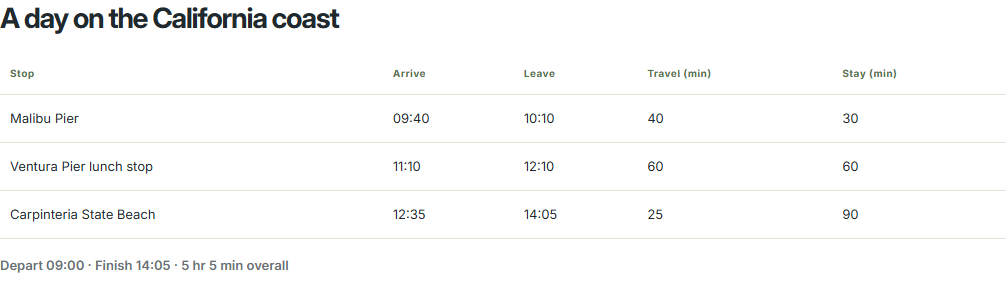
The output uses a 24-hour clock. When your plan crosses midnight, a label such as (+1 day) shows that the arrival or departure is on the following day.
The California example uses illustrative times. This tool does not look up roads or live traffic. Enter your own travel estimates, or calculate mapped directions in the Route Planner first. Changing schedule inputs clears the old result; build it again to see the updated timetable.
Print, export, or keep a draft
- Export CSV downloads a spreadsheet containing the schedule name, departure time, stops, arrival/departure times, travel minutes, and stay minutes.
- Print schedule opens your browser’s print dialog. You can choose a printer or save as PDF if your browser offers it.
- Save on this device stores the current schedule in this browser. Saving again replaces the previous schedule draft.
- Restore draft brings the saved schedule back. Confirm replacement if the current schedule contains stops.
- Delete saved draft removes the browser copy. The schedule currently on screen stays visible.
A draft is available to anyone using the same browser profile. It does not sync between devices and can disappear when site data is cleared. Export a copy if you need to keep it independently.
Something still unclear? Get in touch or try troubleshooting.