
Import stops and export your plan
Bring in an address list, reuse a template, or take your plan with you.
Import an address list
- In Route Planner, open More options → Advanced → Manage Templates.
- Select Import stops.
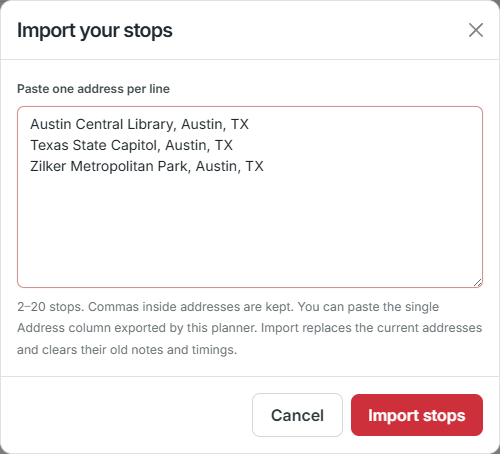
- Paste one complete address per line, with 2–20 addresses.
- Select Import stops in the dialog, review the addresses, and calculate the route.
Austin Central Library, Austin, TX
Texas State Capitol, Austin, TX
Zilker Metropolitan Park, Austin, TX
Commas within an address are kept. The single Address column exported by the planner can be pasted back in, including its optional header. A spreadsheet with several columns must first be reduced to one address column.
Import replaces the address list and clears previous stop notes, durations, and time windows. Save your existing journey or export it first if you need to keep it.
Reuse a browser template
In Manage Templates, use Save to name the current address list. Choose a saved template and use Apply to reuse its stops. Use Delete to remove the selected template.
Templates store addresses in this browser, not in your account. They do not preserve stop notes or timing fields. Applying a template clears those fields. Clearing site data or switching browsers can make templates unavailable; use saved journeys for account-based storage.
Choose an export
- CSV exports the entered address list as one column. It is useful for spreadsheets and address reimport.
- JSON exports the entered address list plus travel mode and distance unit. The address import dialog does not import this JSON file.
- After a mapped route is calculated, Export PDF creates a route document and Add to Calendar downloads a calendar file. Check the selected travel date and departure time before using it.
- The separate day schedule offers its own CSV export and print layout, including your entered stop timings.
If a download does not appear, check your browser’s Downloads list and download permissions.
Something still unclear? Get in touch or try troubleshooting.